
Nafath Registration & Activation Guide
Learn how to set up Nafath, log in with your Absher details, create your Nafath PIN and activate your National Digital Identity step by step.
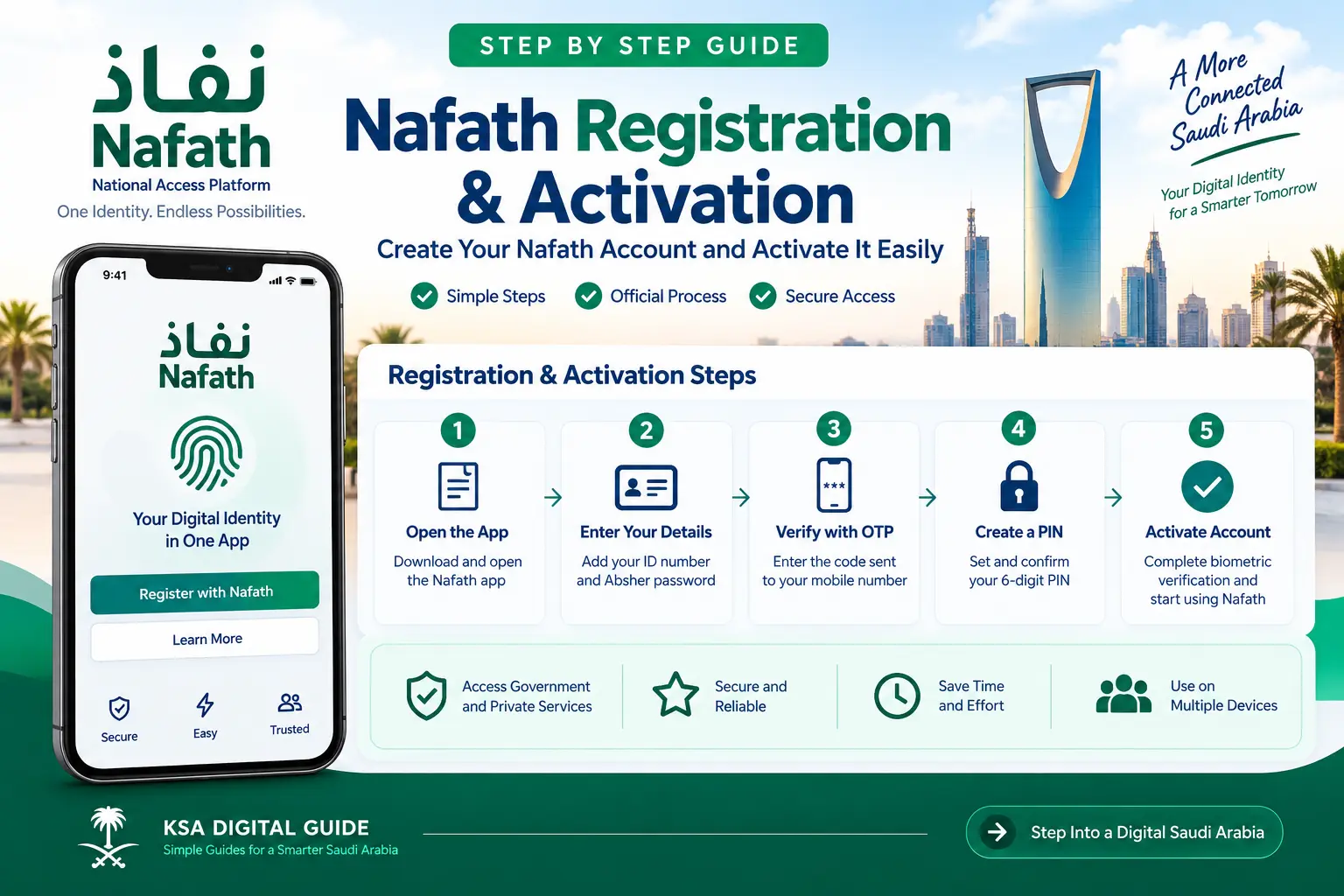
Nafath setup starts by opening the Nafath app and logging in with your ID number and Absher password. You then verify the OTP sent to your Absher mobile number, create a 6-digit personal PIN and complete biometric verification. To activate your National Digital Identity through Nafath, open Settings → Absher Self-service Services → Activate Your National Digital Identity (Absher).
What you need
Your ID number, active Absher account, Absher password and the mobile number linked to Absher.
Verification
Nafath uses OTP and biometric verification as part of its authentication process.
Activation
You can activate your National Digital Identity through the Nafath app without visiting a self-service kiosk.
What Is Nafath?
Nafath is Saudi Arabia’s national digital identity system. It provides secure identity verification for digital services provided by government and private entities.
The Nafath app supports services such as identity verification, accepting authentication requests, digital identity management and biometric verification.
The current Nafath app also provides digital identity management options, including activation, mobile number update and temporary suspension of the digital identity.
What You Need Before Starting Nafath
Before setting up Nafath, make sure you have the following:
- A valid Saudi national ID or other supported identity number.
- An active Absher account.
- Your Absher password.
- Access to the mobile number registered with your Absher account.
- A smartphone with the Nafath application installed.
- A working camera for biometric verification.
- Good lighting when completing face or fingerprint verification.
How to Register and Set Up Nafath
Follow these steps when using the Nafath application for the first time.
Open the Nafath app
Open the official Nafath application on your smartphone and select Login.
Enter your ID number
Enter your ID number and the password associated with your Absher account.
Enter the OTP
Nafath sends a verification code to the mobile number registered with your Absher account. Enter the code to continue.
Create your 6-digit PIN
Create a personal 6-digit PIN. This PIN is used during Nafath authentication requests.
Confirm your PIN
Enter the same 6-digit PIN again to confirm it.
Complete biometric verification
Follow the instructions displayed by Nafath to complete biometric verification. The app will guide you through the required capture process.
Wait for confirmation
After successful verification, Nafath displays a confirmation that the login process has been completed and the application has been linked to your device.
How to Activate Your National Digital Identity Through Nafath
If your goal is specifically to activate your National Digital Identity connected to Absher, Nafath provides a self-service activation option inside the app.
Open Nafath
Open the Nafath application and go to Settings.
Open Absher Self-service Services
From the Absher Self-service Services menu, select Activate Your National Digital Identity (Absher).
Enter your Absher details
Enter your ID number and the password used for your Absher account.
Enter the OTP
A verification code is sent to the mobile number used with your Absher account. Enter the code to proceed.
Answer the verification question
Nafath asks a verification question as an additional identity verification factor.
Prepare for fingerprint verification
The app displays instructions for biometric capture. Follow the instructions shown on your phone.
Place your left hand correctly
Place your left hand horizontally on a flat surface and point the rear camera toward your fingers. Keep the camera clean and make sure the required fingers are visible.
Complete fingerprint verification
Make sure there is enough light and no unnecessary objects in the camera view. The fingerprint image is captured automatically when the required conditions are met.
Check the confirmation
When the fingerprint verification is completed, Nafath displays a message confirming that your Absher account has been successfully activated.
How Nafath Biometric Verification Works
Biometric verification is used to confirm your identity during supported Nafath processes. The exact verification screen can depend on the service you are completing.
For face verification
- Keep your face fully inside the frame shown on the screen.
- Keep the phone aligned with your face.
- Make sure the rear camera is clean when the app requires it.
- Avoid other objects appearing in the capture area.
- Use sufficient lighting.
- Follow the instructions shown by the app.
For fingerprint verification
- Place your left hand horizontally on a flat surface.
- Point the rear camera toward your fingers.
- Keep the camera clean.
- Make sure the required fingers are visible.
- Use sufficient lighting.
- Wait for the fingerprint verification process to finish.
How to Change the Mobile Number Linked to Absher
Nafath also provides a self-service option for updating the mobile number linked to your National Digital Identity.
- Open the Nafath app.
- Go to Settings.
- Open Absher Self-service Services.
- Select Update Your Digital Identity Number (Absher).
- Enter your ID number and Absher password.
- Enter the new mobile number.
- Enter the OTP sent to the new number.
- Complete the biometric verification.
- Wait for the confirmation message.
Common Nafath Registration & Activation Problems
1. OTP is not arriving
Check that you are using the mobile number registered with your Absher account. If the problem continues, use the official Nafath support channels.
2. Biometric verification is failing
Follow the instructions displayed by the app carefully. Clean the rear camera, use sufficient lighting and make sure the required face or fingers are visible in the capture area.
3. Nafath cannot activate the digital identity
Check that your Absher credentials are correct and that you can receive the OTP on the registered mobile number. Then repeat the activation process from the Nafath Settings menu.
4. Nafath verification succeeds but another service does not open
Nafath’s official support page says that if identity verification succeeds but the problem is accessing the service provider’s service, you should contact that service provider directly.
5. You still cannot solve the problem
Nafath provides technical support through its official call center, email and X account. These support channels are available 24/7 according to the official support information.
Nafath Security Tips
Nafath handles sensitive identity information, so protect your login details and device.
- Do not share your Absher password.
- Do not share your Nafath PIN or verification codes.
- Do not give confidential login information to someone over the phone.
- Use Nafath on a secure device.
- Keep your phone and applications updated.
- Contact official support if you believe someone has obtained your account information.
Nafath’s privacy policy states that user information can include contact and device-related data, as well as information such as face images and verification codes. The policy also advises users not to share login information and to use the application through a secure device.
Nafath Registration vs. Nafath Activation
These two terms are often used together, but they refer to different parts of the setup process.
Nafath setup
You log in with your ID number and Absher password, verify the OTP, create a PIN and complete the required biometric verification.
Digital identity activation
You use the dedicated activation option inside Nafath Settings to activate your National Digital Identity connected to Absher.
Mobile number update
Nafath also provides a separate self-service process to update the mobile number linked to the digital identity.
Nafath Registration & Activation FAQ
Do I need an Absher account to set up Nafath?
The official Nafath User Manual uses your ID number and the password associated with your Absher account during the Nafath login process.
Where do I activate my National Digital Identity?
Open Nafath, go to Settings, open Absher Self-service Services and select Activate Your National Digital Identity (Absher).
What is the Nafath PIN?
The Nafath app asks you to create a personal 6-digit PIN during the login and setup process. The PIN can then be used during supported authentication requests.
Why does Nafath need biometric verification?
Nafath uses biometric verification to help verify the user’s identity during supported digital authentication processes.
Can I update my Absher mobile number through Nafath?
Yes. The Nafath app includes a self-service option for updating the mobile number linked to the National Digital Identity.
What should I do if Nafath verification works but the service still does not open?
If Nafath verification succeeds but the problem is with the service you are trying to access, Nafath’s official support page advises contacting that service provider directly.
How can I contact Nafath support?
The official support channels include the Nafath call center at 8001221111, email at Support@nic.gov.sa and the official X account @NIC_Care.
Related Guides
Official Sources
Need Help With Nafath?
Start with your Absher details, complete the OTP and biometric verification, then use the Nafath Settings menu to activate your National Digital Identity.