
Nafath Login & Identity Verification Guide
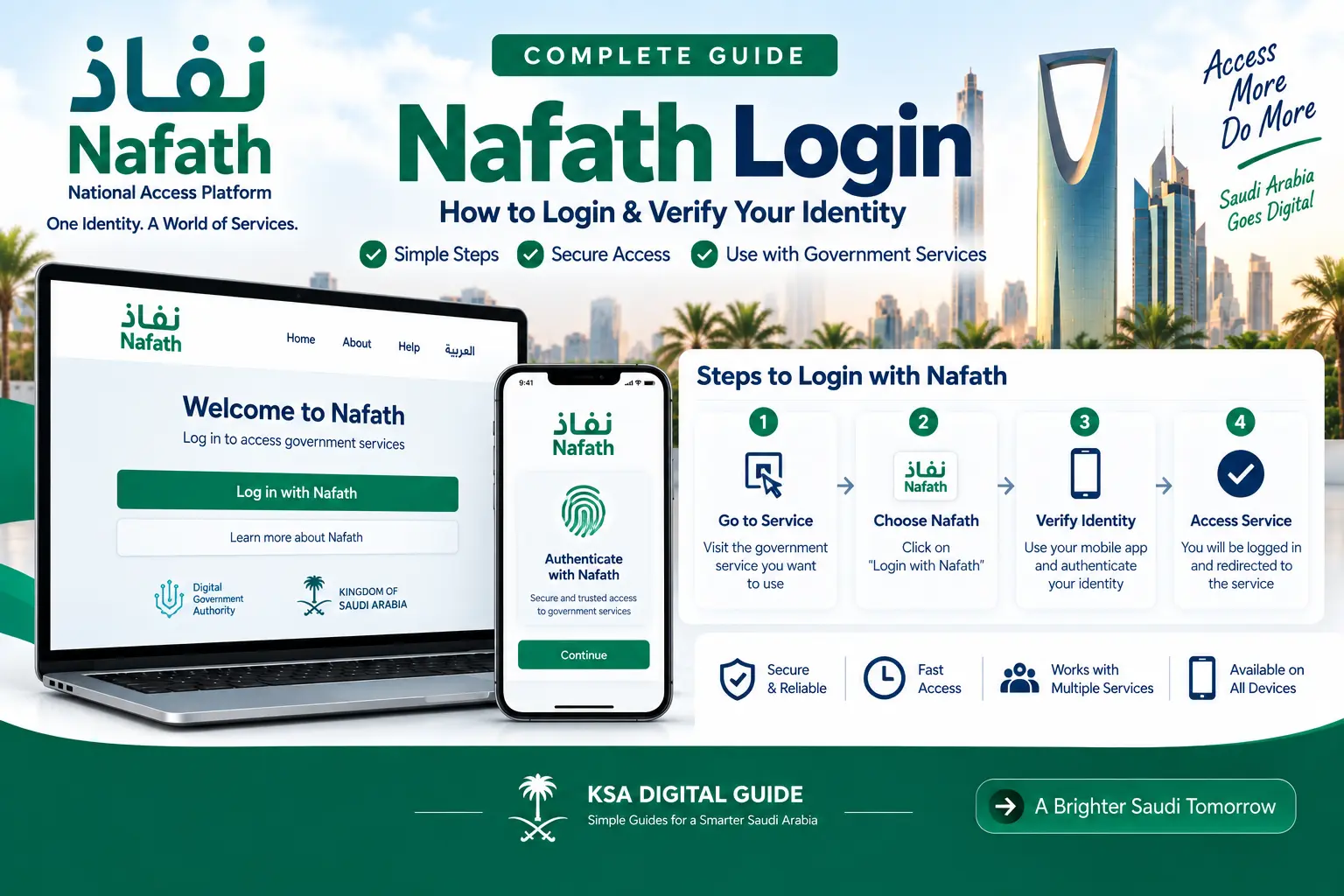
Learn how to log in to the Nafath app, complete identity verification, use the 6-digit PIN and finish biometric verification when required.
ID Number
Use the ID number linked to your Nafath and Absher identity.
Absher Password
Nafath uses the password associated with your Absher account.
OTP
A verification code is sent to the mobile number used in Absher.
Biometric Check
The app may guide you through face or other biometric verification.
What Is Nafath?
Nafath is Saudi Arabia’s national digital identity platform. It helps users verify their identity and access digital services provided by government and private entities.
The Nafath application supports services such as identity verification, accepting verification requests, digital identity management and location verification.
The platform is developed and operated under the Saudi Data and AI Authority through the National Information Center.
What You Need Before Logging in to Nafath
Before starting the login process, make sure you have the information and access needed for verification.
How to Login to Nafath
The current official Nafath User Manual describes the following login process.
Open the Nafath App
Open the Nafath application on your phone and select Login.
Enter Your ID Number
Enter your ID number in the login screen.
Enter Your Absher Password
Enter the password associated with your Absher account.
Enter the OTP
A verification code is sent to the mobile number used in your Absher account. Enter the code to continue.
Create a 6-Digit PIN
Create your personal 6-digit PIN code when the app asks you to create one.
Confirm Your PIN
Enter the same 6-digit PIN again to confirm it.
Complete Biometric Verification
Follow the biometric instructions displayed by the app. For face capture, keep your face fully visible inside the frame.
Finish Login
After successful biometric verification, Nafath shows a message confirming that login is complete and the application has been linked to your device.
Nafath Biometric Verification
Biometric verification is an important part of the Nafath identity process. The exact screen shown can depend on the service or verification process you are completing.
For Face Verification
Place your face inside the frame displayed on the screen. Follow the instructions shown by the app and press the capture button when it becomes available.
The official manual also gives camera and positioning instructions for biometric capture. Follow the instructions displayed on your own Nafath screen rather than relying on a fixed camera position.
What Happens When a Service Sends a Nafath Request?
Some government and private services integrated with Nafath can send an identity verification request to your Nafath application.
Receive the Request
A notification can tell you that a verification request is waiting in Nafath.
Open Nafath
Open the app and go to the Requests screen.
Review the Request
Check the incoming request before accepting or rejecting it.
Match the Request Number
When the service displays a request number, select the matching number in Nafath.
Enter Your PIN
Enter the 6-digit personal PIN you created during the Nafath login process.
Complete Verification
Depending on the request, Nafath may ask for biometric verification before the request is accepted.
Common Nafath Login Problems
1. OTP Is Not Arriving
Check that you can receive messages on the mobile number associated with your Absher account. If the problem continues, verify that the issue is not with your mobile service before contacting Nafath support.
2. Absher Password Is Not Working
Nafath uses the password associated with your Absher account for the application login process. If you cannot use your Absher password, resolve the Absher account password issue first.
3. Face Verification Fails
Follow the camera instructions displayed by Nafath. Clean the camera, make sure your full face is visible and use sufficient lighting.
4. The App Cannot Complete Verification
Make sure the Nafath application is updated and your phone has a stable internet connection. If the problem remains, contact official Nafath technical support.
5. Verification Works but the Service Does Not Open
If Nafath verification succeeds but you have a problem accessing the service provider’s service, contact the service provider directly.
Nafath Login Security Tips
Nafath’s official privacy policy advises users not to share login information and to use the application through a secure electronic device.
How to Contact Nafath Support
If you continue to have a Nafath platform or application problem, official Nafath support is available through approved channels.
Call Center
8001221111
Official Nafath technical support.
Support@nic.gov.sa
Official support email.
X Support Account
@NIC_Care
Official Nafath support account.
Service Provider
If Nafath verification succeeds but the destination service does not work, contact that service provider.
Related KSA Digital Guide Articles
Nafath Login FAQ
How do I log in to Nafath?
Open the Nafath app, select Login, enter your ID number and Absher password, enter the OTP sent to your Absher mobile number, create and confirm your 6-digit PIN, and complete the biometric verification shown by the app.
Does Nafath use my Absher password?
Yes. The official Nafath User Manual states that Nafath app login uses your ID number and the password associated with your Absher account.
What is the Nafath PIN?
It is a personal 6-digit code created during the Nafath application login process. It can be used during later verification requests.
Why does Nafath ask for face verification?
Nafath uses biometric verification as part of its digital identity verification process. The app provides instructions when biometric capture is required.
What should I do if Nafath face verification fails?
Follow the instructions shown by the app. Make sure the camera is clean, your full face is visible and there is enough lighting. If the issue continues, contact official Nafath support.
What if I receive a Nafath request I do not recognize?
Do not accept an identity verification request that you do not recognize or understand. Check the service you were trying to use before approving any request.
What is the Nafath support number?
The official Nafath support number is 8001221111.
Official Sources
This guide is based primarily on official Nafath information and the current Nafath User Manual. Government service procedures can change, so always check the official source when completing an actual verification.
Need Help With Another Saudi Digital Service?
KSA Digital Guide explains Saudi government digital services in simple English, including Absher, Nafath, Iqama, Visa, Traffic, Qiwa and Muqeem.