
How to Update Your Nafath Mobile Number
Learn how to update the mobile number linked to your Nafath digital identity and Absher account using the official Nafath app.
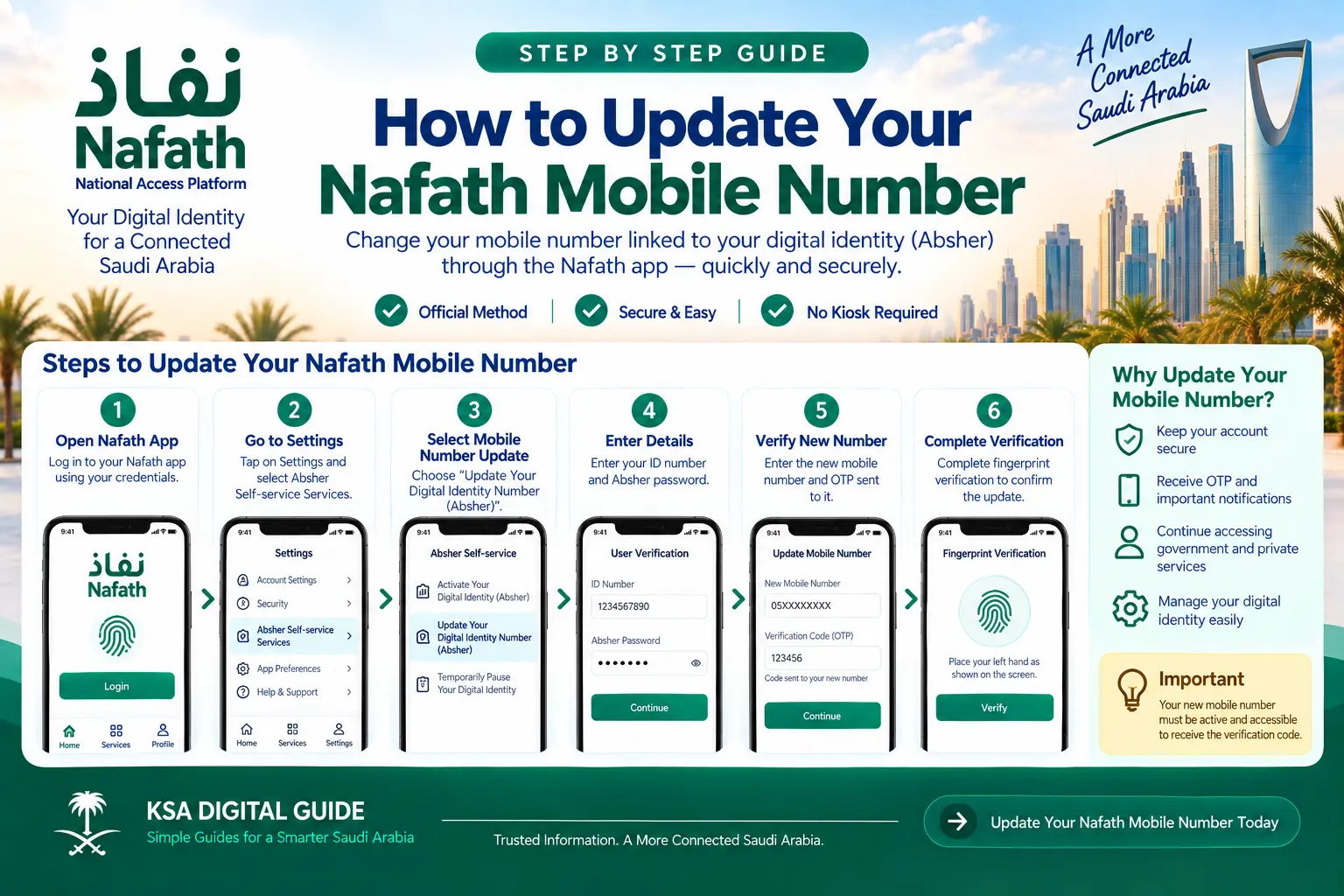
Official Nafath Service
Nafath currently provides a Digital Identity Mobile Number Update service.
New Number OTP
The verification code is sent to the new mobile number entered during the process.
Fingerprint Verification
The official process includes fingerprint verification before the update is completed.
What Is Nafath Mobile Number Update?
Nafath provides a digital identity account management service that allows users to update the mobile number linked to their National Digital Identity (Absher).
The official Nafath User Manual describes this service as a way to update the mobile number linked to the National Digital Identity without visiting a self-service kiosk.
The current Nafath application also lists Digital Identity Mobile Number Update as one of its digital identity account management services.
What You Need Before Updating Your Nafath Number
Have the following ready before you start the update.
- Your ID number.
- Your Absher password.
- The new mobile number you want to register.
- Access to the new mobile number so you can receive the OTP.
- The Nafath application on your phone.
- Ability to complete the fingerprint verification requested by Nafath.
How to Update Your Nafath Mobile Number
Follow the official Nafath process below.
Open the Nafath App
Open the Nafath application on your phone.
Open Settings
Tap Settings inside the Nafath application.
Select the Update Service
From Absher Self-service Services, select Update Your Digital Identity Number (Absher).
Enter Your Details
Enter your ID number and the password used in your Absher account.
Enter the New Mobile Number
Enter the new mobile number that you want to link to your National Digital Identity.
Enter the OTP
Nafath sends a verification code to the new mobile number. Enter the code to continue.
Start Fingerprint Verification
After OTP verification, Nafath displays instructions for capturing your biometric information.
Complete the Verification
Follow the fingerprint instructions and wait for the verification process to finish.
Verify the New Mobile Number With OTP
After you enter the new mobile number, Nafath sends a verification code to that number.
Enter the OTP shown in the message into the Nafath application to continue with the update.
Do Not Share Your OTP
Never give your OTP to another person. Enter the verification code yourself inside the official Nafath application.
Complete Fingerprint Verification
After the OTP is verified, Nafath starts the biometric verification process.
The current official User Manual gives the following instructions for the fingerprint capture used by this service.
Place Your Left Hand
Place your left hand horizontally on a flat surface.
Use the Rear Camera
Direct the rear camera towards your fingers.
Follow the Screen
Position the phone according to the instructions displayed by Nafath.
Keep the Camera Clean
Make sure the rear camera is clean and there are no other objects in the image.
Show the Required Fingers
Make sure all fingers except the thumb appear in the capture frame.
Use Enough Light
Make sure there is sufficient lighting for the biometric capture.
When the instructions have been followed, the fingerprint image is captured automatically. Wait for the fingerprint verification process to finish.
What Happens After the Update?
After successful fingerprint verification, Nafath displays a message confirming that your Absher account phone number has been successfully updated.
The same official screen instructs users to check after 10 minutes.
Nafath Mobile Number Update Not Working?
If the update does not complete, check the issue below.
| Problem | What to Check |
|---|---|
| OTP not received | Check that the new mobile number was entered correctly and can receive SMS messages. |
| Absher password not accepted | Make sure you are entering the password associated with your Absher account. |
| Fingerprint verification fails | Follow the Nafath instructions, keep the rear camera clean, use sufficient lighting and make sure all required fingers except the thumb are visible. |
| Fingerprint verification is taking time | Keep your hand and phone positioned according to the instructions and wait for the verification process to complete. |
| Number still appears unchanged | The official Nafath confirmation instructs users to check after 10 minutes. |
| Nafath technical problem | Contact official Nafath technical support through the current support channels. |
Can I Change My Nafath Number Without Visiting a Kiosk?
Yes. The official Nafath User Manual describes the mobile-number update service as a way to update the mobile number linked to the National Digital Identity (Absher) without visiting a self-service kiosk.
The complete process can be started through the Nafath application and includes ID verification, entering the new number, OTP verification and biometric verification.
What If I No Longer Have Access to My Old Mobile Number?
The official Nafath procedure for this service sends the OTP to the new mobile number entered during the update.
The current User Manual does not state that an OTP must be received on the old number during this particular update process.
Security Tips When Updating Your Nafath Number
- Use the official Nafath application.
- Never share your Absher password.
- Never share your Nafath PIN.
- Never share your OTP with another person.
- Complete the verification yourself.
- Use Nafath through a secure device.
- Contact official Nafath support if you believe someone has obtained your confidential account information.
Official Nafath Support
If you cannot complete the mobile-number update after following the official steps, contact Nafath technical support.
Call Center
8001221111
Support@nic.gov.sa
X Account
@NIC_Care
The official Nafath contact page currently lists these support channels as available 24/7.
Nafath Mobile Number Update FAQ
How do I update my Nafath mobile number?
Open Nafath, go to Settings, select Update Your Digital Identity Number (Absher) under Absher Self-service Services, enter your ID number and Absher password, enter the new mobile number, verify the OTP and complete fingerprint verification.
Can I change my Absher mobile number through Nafath?
Yes. Nafath provides a service to update the mobile number linked to the National Digital Identity (Absher).
Do I need to visit a self-service kiosk?
No. The official Nafath User Manual states that this service allows users to update the linked mobile number without visiting a self-service kiosk.
Where is the OTP sent?
The verification code is sent to the new mobile number entered during the update process.
Is fingerprint verification required?
Yes. The official Nafath procedure includes fingerprint verification after the new mobile number is verified with the OTP.
How long should I wait after changing my number?
The official Nafath confirmation screen instructs users to check after 10 minutes.
What should I do if I do not receive the OTP?
Check that the new mobile number was entered correctly and can receive SMS messages. If the issue continues, contact official Nafath support.
What if fingerprint verification fails?
Follow the instructions shown by Nafath, keep the rear camera clean, use sufficient lighting and make sure all required fingers except the thumb are visible in the capture frame.
How can I contact Nafath support?
Contact Nafath through 8001221111, Support@nic.gov.sa or @NIC_Care.
Related Nafath Guides
Official Nafath Sources
Need Help With Another Nafath Problem?
Explore our complete Nafath guides for login, registration, biometric verification, requests and troubleshooting.
View Nafath Troubleshooting Guide