
Absher Login & Password Recovery Guide
Forgot Your Absher Password?
Follow these steps to reset your password through the official Absher service.
Open the official Absher login page
Go to Absher and select Forgot Password?
Enter your ID or Iqama number
Enter the ID or Iqama number connected to your Absher account.
Enter your registered mobile number
Use the mobile number registered with your Absher account.
Enter the image code
Type the image code shown on the reset page and continue.
Complete verification and create a new password
Follow the verification steps shown by Absher, then enter and confirm your new password.
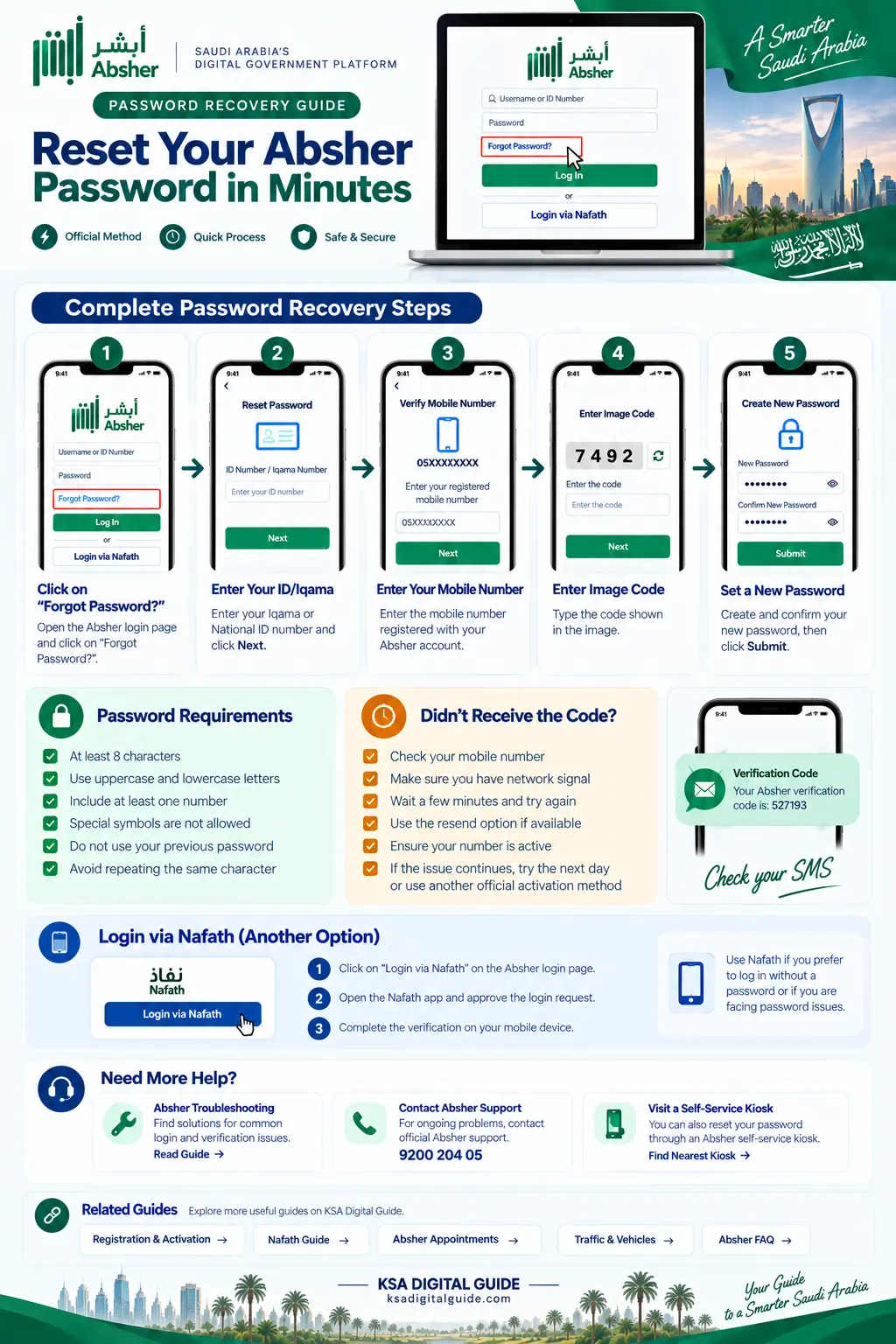
Absher password recovery steps — visual guide.
Important: The official Absher reset page asks for your correct ID or Iqama number, mobile number and image code. If your mobile number is incorrect, the recovery process can fail.
If You Cannot Reset Your Password
Check these points before trying another method.
Wrong mobile number
Make sure you entered the mobile number registered with your Absher account.
Verification code not received
Check that your registered mobile is active and can receive SMS messages.
New password rejected
Check the password rules shown by Absher and create a password that meets them.
Still cannot recover the account
Use an official Absher support or activation channel instead of using an unofficial recovery service.
Official support: Absher lists 920020405 for help and technical support.
Absher Password Rules
Absher’s published password guidance includes these requirements.
Your password should
- Have at least 8 characters.
- Include uppercase and lowercase letters.
- Include at least one number.
- Be different from the old password.
Avoid these problems
- Special symbols are not accepted in the published password policy.
- Do not use too much of your User ID.
- Do not repeat the same character too many times.
- Follow any additional rule shown on the current Absher screen.
How to Log In to Absher
If you already know your password, the current Absher login page allows you to enter your Username or ID Number and password.
Absher also provides a separate Login via Nafath option.
New Absher user? Read the Absher Registration & Activation Guide first.
Login via Nafath
If you choose Login via Nafath on Absher, follow the verification request shown in the official Nafath app.
Only approve a Nafath request that you started yourself.
Read the Complete Nafath Guide →Keep Your Absher Account Safe
Never share
- Absher password
- Verification codes
- Nafath PIN
Always check
- Use the official Absher website.
- Do not approve unknown Nafath requests.
- Avoid unofficial account recovery services.
Related Absher Guides
Absher Password Recovery FAQ
How can I recover my Absher password?
Open the official Absher login page, select Forgot Password, enter your ID or Iqama number, registered mobile number and image code, then complete the verification steps shown by Absher.
Can I reset my Absher password without my registered mobile number?
The official reset form requires the mobile number connected to the account. If you cannot use that number, use an official Absher support or activation channel.
Can I log in to Absher using Nafath?
Yes. The current Absher login page provides Login via Nafath as an alternative login option.
What is the Absher support number?
Absher lists 920020405 for help and technical support.
Official source: For account login and password recovery, always check the latest instructions on the official Absher website .
Password Recovered?
You can now use your Absher account to access the services available to you.
Explore Absher Guides →