
Nafath Not Working: Common Problems & Solutions
Having trouble with Nafath? Learn how to troubleshoot login, OTP, biometric verification, app and service access problems step by step.
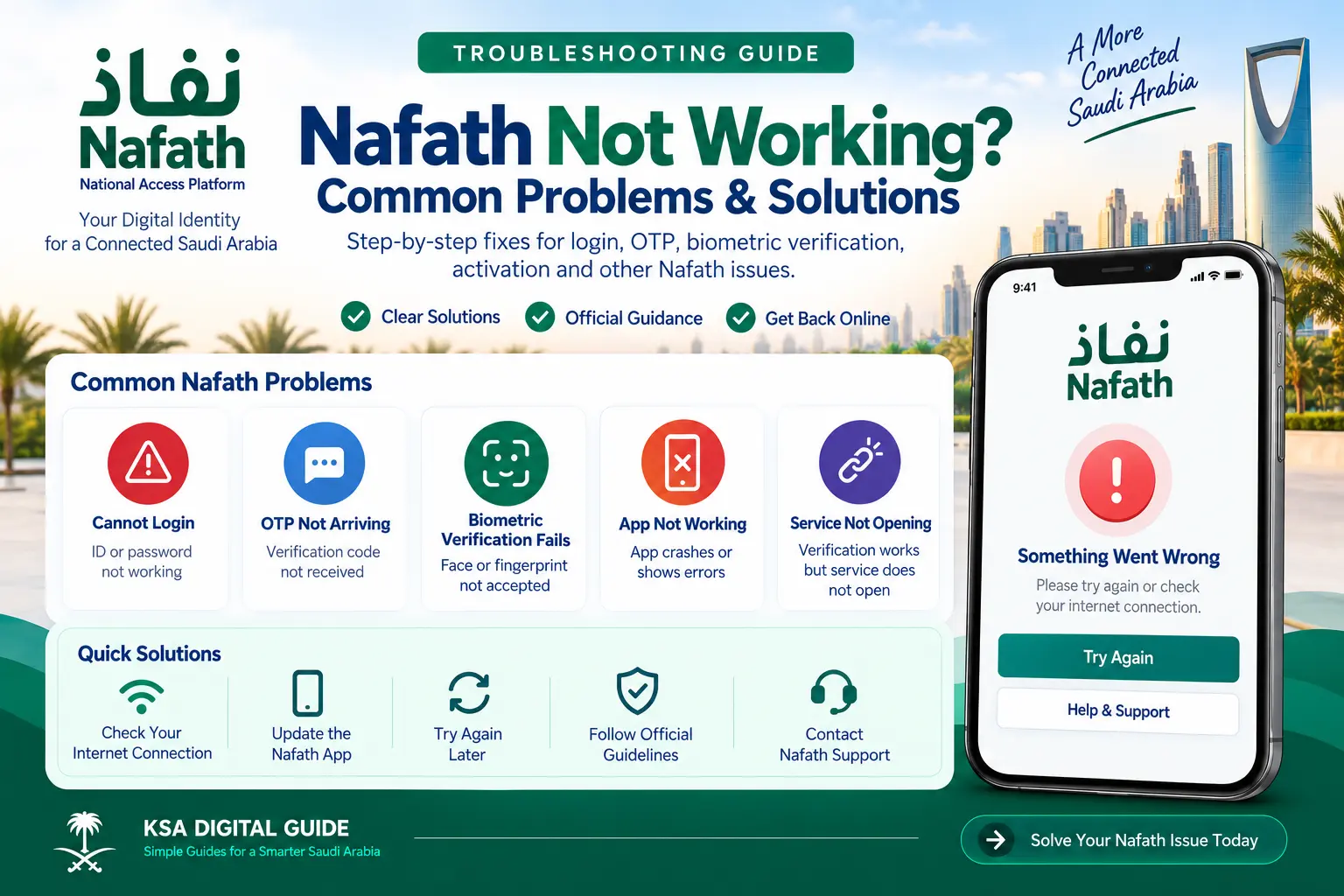
If Nafath is not working, first identify where the problem happens: login, OTP, biometric verification, the Nafath app itself, or the service you are trying to access. Check your connection, confirm your Absher details and registered mobile number, follow the biometric instructions carefully, and try again. If Nafath verification succeeds but the service still does not open, the official Nafath support guidance says to contact the service provider directly.
Login Problem
Check your ID number and Absher password before trying again.
OTP Problem
The verification code is sent to the mobile number used with your Absher account.
Biometric Problem
Follow the face or fingerprint instructions shown inside the Nafath app.
First: Identify Where Nafath Is Failing
Nafath provides several identity services, including authentication requests, biometric verification and digital identity management. This means a problem can occur at different stages of the process.
Before trying random fixes, identify the exact point where the process stops.
Cannot log in
The problem appears when entering your ID number or Absher password.
OTP missing
You reach the verification stage but do not receive the code.
Biometric failure
Face or fingerprint verification does not complete successfully.
App problem
The Nafath application crashes, freezes or does not respond correctly.
Service problem
Nafath verification succeeds but the government or private service does not open.
Activation problem
You cannot complete National Digital Identity activation through Nafath.
Nafath Login Not Working
The official Nafath User Manual shows that the login process starts with your ID number and the password associated with your Absher account.
Check your ID number
Make sure you are entering the correct identity number. Check the digits carefully before submitting the form.
Check your Absher password
Nafath’s official login flow uses the password associated with your Absher account. If you cannot remember the password, use the official password recovery process instead of repeatedly entering incorrect details.
Try again after checking the details
If your credentials are correct but the login still fails, close the process and start again. If the issue continues, use the official Nafath support channels.
Nafath OTP Not Received
During the Nafath login process, the official User Manual says that a verification code is sent to the mobile number used with your Absher account.
Try these checks
- Confirm that you are using the correct Absher account.
- Make sure your registered mobile number is active.
- Check your phone’s network connection.
- Wait briefly and request the process again if the screen provides that option.
- Restart the login process if the verification screen becomes stuck.
- If the OTP problem continues, contact official Nafath support.
Nafath Biometric Verification Failed
Nafath supports biometric identity verification. The exact instructions shown can depend on the service you are completing.
If biometric verification fails, carefully follow the instructions displayed by the Nafath application rather than repeatedly trying without changing the setup.
General checks
- Use a well-lit area.
- Keep the phone steady during the capture process.
- Follow the position shown on the screen.
- Make sure the camera lens is clean.
- Keep unnecessary objects away from the capture area.
- Complete the process exactly as instructed by Nafath.
Nafath Face Verification Not Working
Face verification can fail when the camera cannot properly capture the required biometric information.
Use sufficient lighting
Move to a place with clear and sufficient light so the camera can capture your face correctly.
Follow the frame
Keep your face inside the frame shown by the application and follow any movement instructions displayed.
Check the camera
Make sure the camera lens is clean and that nothing is blocking the camera.
Try again
Restart the biometric verification process and carefully follow the instructions shown by Nafath.
Nafath Fingerprint Verification Problem
Some Nafath processes use fingerprint verification. The official User Manual provides specific instructions for fingerprint capture during National Digital Identity activation.
For the activation process
- Place your left hand horizontally on a flat surface.
- Point the rear camera toward your fingers.
- Keep the camera clean.
- Make sure the required fingers are visible.
- Use sufficient lighting.
- Wait for the verification process to finish.
If the fingerprint still cannot be verified after following the official instructions, contact Nafath support rather than sharing your identity information with an unofficial person.
Nafath App Not Working
If the Nafath application itself is freezing, closing unexpectedly or not responding, start with basic device checks.
- Check your internet connection.
- Close the Nafath app and open it again.
- Restart your phone if the app remains unresponsive.
- Make sure you are using the current version available for your device.
- Make sure your phone’s operating system is supported and updated.
- Try the process again after confirming your connection.
Nafath Verification Works but the Service Does Not Open
This is an important difference. Sometimes Nafath successfully verifies your identity, but the website or application you were trying to access still shows an error.
In this situation, the problem may be with the service provider rather than the Nafath authentication itself.
If Nafath confirms that your identity verification was successful but you cannot access the service, contact the technical support team of the government or private service you were trying to use.
Nafath’s official contact page specifically gives this guidance for cases where verification succeeds but access to the service provider’s service remains unavailable.
Nafath Digital Identity Activation Not Working
Nafath provides a service for activating the National Digital Identity connected to Absher.
According to the official User Manual, the activation path is:
Nafath → Settings → Absher Self-service Services → Activate Your National Digital Identity (Absher)
If activation stops during the process
- Check your ID number and Absher password.
- Make sure you can receive the OTP on your Absher mobile number.
- Answer the verification question correctly.
- Follow the biometric instructions carefully.
- Use good lighting during fingerprint verification.
- Keep the camera clean and unobstructed.
- Try the activation process again.
If the activation process continues to fail after these checks, use the official Nafath support channels.
Browser or Nafath Website Problem
Some users may encounter problems when using a browser-based authentication page instead of the mobile application.
If the website displays a message that the browser is outdated or unsupported, update the browser to its latest available version and try again.
If the same problem continues, try the official Nafath process again from a supported and updated device or browser.
When You Should Contact Nafath Support
Contact official support when normal troubleshooting does not solve the problem, especially if the issue repeatedly prevents identity verification or account access.
Call Center
8001221111
Official Nafath technical support.
Support@nic.gov.sa
Official Nafath support email.
X
@NIC_Care
Official Nafath support account.
The official support page lists these channels as available 24/7. It also states that complaints can receive a reference number by SMS after submission.
How to Report a Nafath Problem
When contacting support, explain exactly where the problem occurs. This makes it easier to understand whether the issue is related to login, OTP, biometric verification or access to another service.
Include useful details such as:
- The Nafath service you were trying to use.
- The step where the problem occurred.
- The error message shown on the screen.
- Whether OTP was received.
- Whether biometric verification completed.
- Whether the problem happens repeatedly.
Nafath Security Tips
Nafath handles digital identity information, so troubleshooting should never involve giving your confidential login information to another person.
- Do not share your Absher password.
- Do not share your Nafath PIN.
- Do not share OTP codes.
- Do not provide confidential information to unofficial callers.
- Use Nafath on a secure device.
- Keep your device and security software updated.
- Contact official support if you believe someone has obtained your confidential information.
Nafath’s privacy policy specifically advises users not to share login information and recommends using the application through a secure electronic device.
Nafath Troubleshooting: Quick Checklist
Check your connection
Make sure your phone has a working internet connection.
Check your Absher details
Confirm that your ID number and Absher password are correct.
Check your mobile
The OTP is sent to the mobile number used with your Absher account.
Check biometric conditions
Use good lighting and follow the exact instructions shown by Nafath.
Check the app
Restart the application and make sure you are using the current available version.
Identify the service provider
If Nafath verification succeeds but another service fails, contact that service provider.
Contact official Nafath support
Use 8001221111, Support@nic.gov.sa or @NIC_Care when the problem continues.
Nafath Not Working FAQ
Why is Nafath not working?
Nafath problems can happen at different stages, including login, OTP verification, biometric verification, application access or the service provider’s website. Identify the stage where the problem occurs before troubleshooting.
Why am I not receiving the Nafath OTP?
The official Nafath User Manual says the OTP is sent to the mobile number used with your Absher account. Check that the registered number is active and try the process again.
Why is Nafath face verification failing?
Check the lighting, camera position and the instructions shown by Nafath. Keep your face inside the required frame and make sure the camera can capture it clearly.
What should I do if Nafath fingerprint verification fails?
Follow the biometric instructions displayed by Nafath. For National Digital Identity activation, the official manual instructs users to place the left hand horizontally on a flat surface, point the rear camera toward the fingers and use sufficient lighting.
What if Nafath verification succeeds but the website does not open?
If Nafath confirms successful verification but you cannot access the service, contact the technical support team of the government or private service you were trying to access.
How can I contact Nafath support?
Official Nafath support channels are 8001221111, Support@nic.gov.sa and @NIC_Care. The official support page lists these channels as available 24/7.
Can I give my Nafath password or OTP to support?
No. Do not share confidential login information, passwords, PINs or OTP codes with other people.
Related Nafath Guides
Official Sources
Still Having a Nafath Problem?
Identify the exact step where Nafath fails, follow the relevant troubleshooting steps above, and use official Nafath support if the problem continues.