
Nafath Face Verification: How It Works & Common Problems
Learn how Nafath biometric face verification works, what you need for a successful capture, and what to do when verification fails.
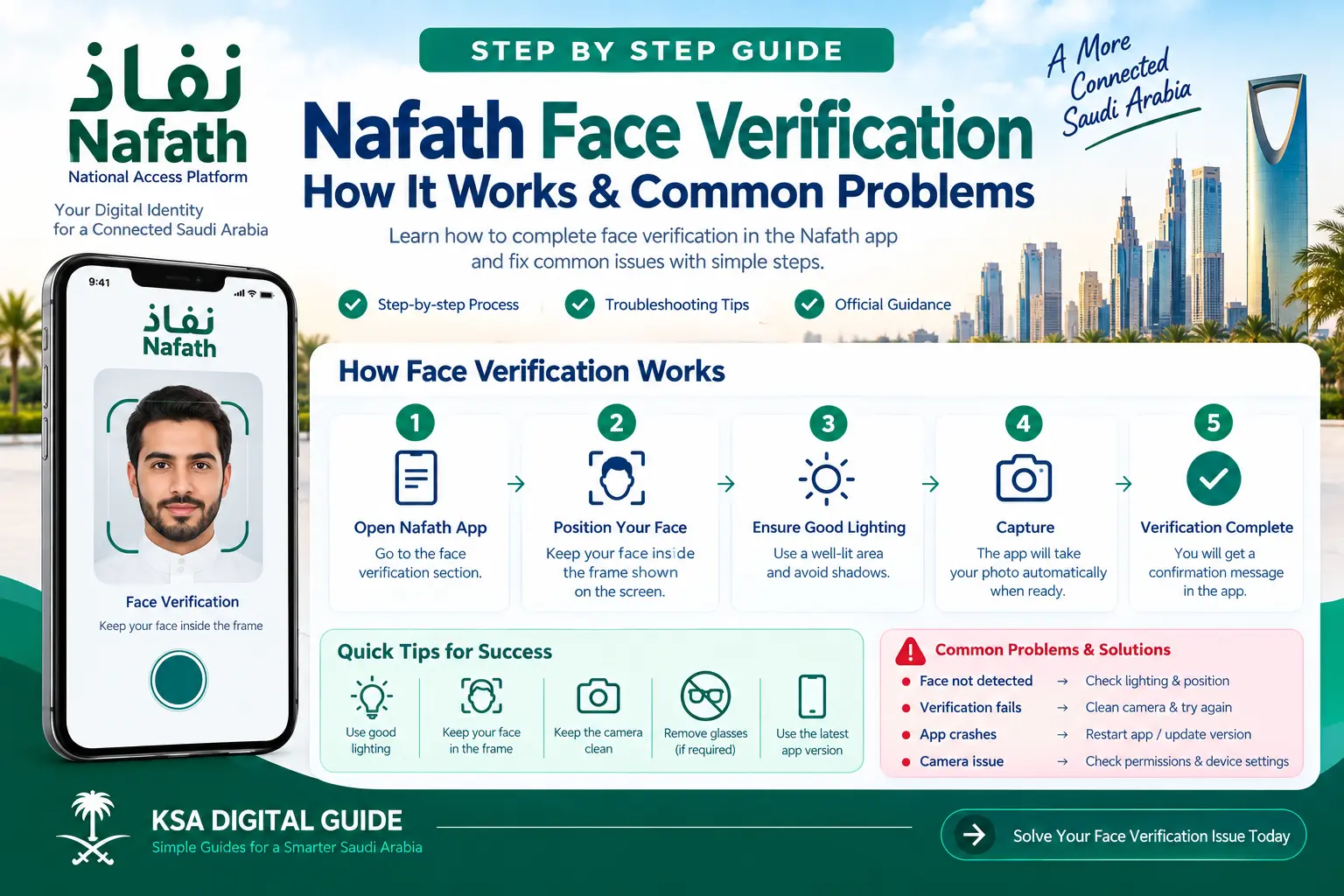
Nafath uses biometric verification to confirm a user’s identity during supported digital authentication processes. When face capture is required, keep your entire face visible inside the capture frame, hold the phone in line with your face, keep the rear camera clean, remove other objects from the image and use sufficient lighting. When the conditions are correct, the Capture button turns green and you can complete the verification.
Full Face Visible
Keep your entire face inside the capture frame shown by Nafath.
Good Lighting
Use sufficient lighting so the camera can capture your face clearly.
Clean Camera
Keep the rear camera clean and make sure nothing blocks the image.
What Is Nafath Face Verification?
Nafath is Saudi Arabia’s national digital identity system. The official Nafath application includes a biometric verification service that allows users to verify their identity using biometrics during supported digital services.
Face capture is one of the biometric verification processes described in the official Nafath User Manual. The application provides instructions on the screen to help the user position the phone and complete the verification.
The purpose is to confirm the user’s identity before the related digital authentication process is completed.
How Nafath Face Verification Works
The exact screen can depend on the authentication service you are using. When biometric face verification is required, Nafath displays instructions for capturing your face.
Nafath requests biometric verification
A supported authentication request can require biometric verification before it is accepted.
Position the phone
Follow the position instructions displayed on the Nafath screen and keep the phone aligned with your face.
Make your face visible
The official manual instructs users to make sure the entire face is visible inside the capture frame.
Check the camera and lighting
Keep the rear camera clean, avoid other objects in the image and make sure there is sufficient lighting.
Complete the capture
When the required conditions are met, the Capture button turns green. Press it to complete the biometric verification.
Check the result
After successful biometric verification, Nafath displays a message indicating that the request has been successfully accepted.
Step-by-Step Nafath Face Verification
If Nafath asks you to complete face verification, use the following checklist before pressing the capture button.
Read the instructions on screen
Nafath provides instructions for the biometric capture process. Follow the instructions displayed by the app.
Position your phone correctly
Hold the phone so its position is aligned with the position of your face.
Keep your entire face visible
Make sure your full face is visible inside the capture frame shown on the screen.
Use sufficient lighting
Move to an area with enough light so your face can be captured clearly.
Clean the rear camera
A dirty camera lens can affect the quality of the captured image. Make sure the rear camera is clean.
Remove other objects from the image
The official manual instructs users to avoid having other objects in the image during biometric capture.
Wait for the Capture button
When the required conditions are met, the Capture button changes to green.
Complete verification
Press the Capture button and wait for Nafath to complete the biometric verification process.
What You Need for Successful Face Verification
You do not need to guess the capture requirements. Nafath provides specific instructions during the biometric process.
- Your face should be fully visible inside the capture frame.
- The phone should be positioned in line with your face.
- The rear camera should be clean.
- There should not be other objects in the captured image.
- There should be sufficient lighting.
- You should follow the instructions displayed by Nafath.
Common Nafath Face Verification Problems
Most face verification problems can be connected to the capture conditions, the device camera or the verification process itself.
Face not detected
Your face is not properly visible inside the capture frame.
Capture not ready
The Capture button does not turn green.
Image unclear
Lighting or camera cleanliness may affect the capture.
Verification fails
The capture completes but the biometric verification does not succeed.
Camera issue
The device camera does not provide the required capture.
Repeated failure
The same verification problem continues after following the instructions.
Nafath Face Not Detected
If Nafath cannot detect your face correctly, start by checking the position of your face and phone.
- Make sure your entire face is inside the capture frame.
- Position the phone in line with your face.
- Move to an area with sufficient lighting.
- Make sure the rear camera is clean.
- Remove other objects from the capture area.
- Follow any additional instructions displayed by Nafath.
Once the required conditions are met, wait for the Capture button to turn green.
Nafath Face Verification Lighting Problem
Sufficient lighting is one of the conditions specifically listed in the official Nafath User Manual.
What to do
- Move to a better-lit area.
- Avoid conditions where your face cannot be clearly captured.
- Keep your face visible inside the frame.
- Follow the lighting instructions shown by Nafath.
You do not need to change random device settings first. Start by following the capture instructions shown in the Nafath application.
Nafath Camera Problem During Face Verification
Nafath’s official manual specifically says to ensure that the rear camera is clean during biometric verification.
Clean the camera
Gently clean the rear camera lens and remove anything that may block the image.
Check the capture area
Make sure there are no unnecessary objects in the image.
Check your position
Keep the phone aligned with your face and make sure your full face is visible.
Try the capture again
Follow the on-screen instructions and wait until the Capture button becomes green.
Nafath Capture Button Is Not Turning Green
According to the official User Manual, the Capture button turns green after the biometric capture conditions have been met.
If it remains inactive, check these points:
- Is your entire face visible?
- Is the phone aligned with your face?
- Is the rear camera clean?
- Are there other objects in the image?
- Is the lighting sufficient?
- Are you following the instructions shown on the screen?
Fix the capture conditions first. When Nafath recognizes that the required conditions are satisfied, the Capture button should turn green according to the official manual.
Nafath Face Verification Failed After Capture
If the capture completes but verification does not succeed, repeat the process carefully and check the capture conditions again.
- Make sure your face is completely visible.
- Use sufficient lighting.
- Clean the rear camera.
- Keep the phone aligned with your face.
- Remove other objects from the image.
- Follow the instructions displayed by Nafath.
- Try the verification process again.
Nafath Face Verification vs. Nafath Login
These are related but different parts of the authentication process.
Nafath Login
The login process uses your identity number and Absher password, followed by the required verification steps.
Biometric Verification
Nafath can require biometric verification to confirm your identity during supported authentication.
Authentication Request
A service provider can send a request that you accept through Nafath, with biometric verification required when specified.
What If Nafath Verification Works but the Service Does Not Open?
Successful biometric verification does not always mean that every problem with the service you are accessing is solved.
Nafath’s official support page says that if authentication succeeds but you have a problem accessing the service provider’s service, you should contact that service provider directly.
How to Contact Nafath Support
If your biometric verification problem continues after following the official instructions, use the official Nafath support channels.
Call Center
8001221111
Official Nafath technical support.
Support@nic.gov.sa
Official support email.
X
@NIC_Care
Official Nafath support account.
The official support page lists these channels as available 24/7. It also states that a complaint generates a ticket reference number by SMS.
Nafath Face Verification Quick Checklist
Full face visible
Keep the entire face inside the capture frame.
Phone aligned
Keep the phone position in line with your face.
Camera clean
Make sure the rear camera is clean.
No other objects
Avoid other objects appearing in the capture image.
Sufficient lighting
Use enough light for clear face capture.
Wait for green Capture
When the conditions are met, the Capture button turns green.
Nafath Face Verification FAQ
Why is Nafath face verification not working?
Check that your full face is visible, the phone is aligned with your face, the rear camera is clean, there are no other objects in the image and the lighting is sufficient.
Why is my face not detected by Nafath?
Make sure your entire face is visible inside the capture frame and position the phone in line with your face. Also check the lighting and camera cleanliness.
Why is the Nafath Capture button not green?
The official User Manual says the Capture button turns green after the required biometric capture conditions have been followed. Check your face position, camera, image area and lighting.
Does Nafath require good lighting for face verification?
Yes. Sufficient lighting is specifically included in the official biometric verification instructions.
Should the rear camera be clean?
Yes. The official Nafath User Manual specifically instructs users to ensure the rear camera is clean during biometric verification.
What if Nafath face verification keeps failing?
Repeat the process while carefully following the official capture instructions. If the problem continues, contact Nafath technical support through the official channels.
What if Nafath verification succeeds but the service does not open?
Nafath’s official support guidance says to contact the service provider directly when authentication succeeds but access to that provider’s service remains unavailable.
How can I contact Nafath support?
Contact Nafath through 8001221111, Support@nic.gov.sa or the official X account @NIC_Care. The official support page lists these channels as available 24/7.
Related Nafath Guides
Official Sources
Still Having a Nafath Face Verification Problem?
Check your face position, camera, lighting and capture conditions first. If the problem continues, use the official Nafath support channels.