
How to Approve a Nafath Request
Learn how to review and approve a Nafath authentication request, select the correct request number, enter your PIN and complete biometric verification when required.
What you need
A working Nafath app and the 6-digit PIN created during Nafath setup.
Request number
Select the number that exactly matches the number displayed by the service provider.
Biometric check
Some requests require face verification before authentication is completed.
What Is a Nafath Request?
A Nafath request is an identity authentication request sent by a government or private service that is integrated with Nafath.
The request appears in the Nafath app so you can review it and either accept or reject it. Nafath’s official user manual describes the Requests Acceptance service as a way to accept verification requests received from integrated government and private platforms or applications.
The request is normally created while you are trying to log in to or access another service. You then use the Nafath app to complete the identity verification.
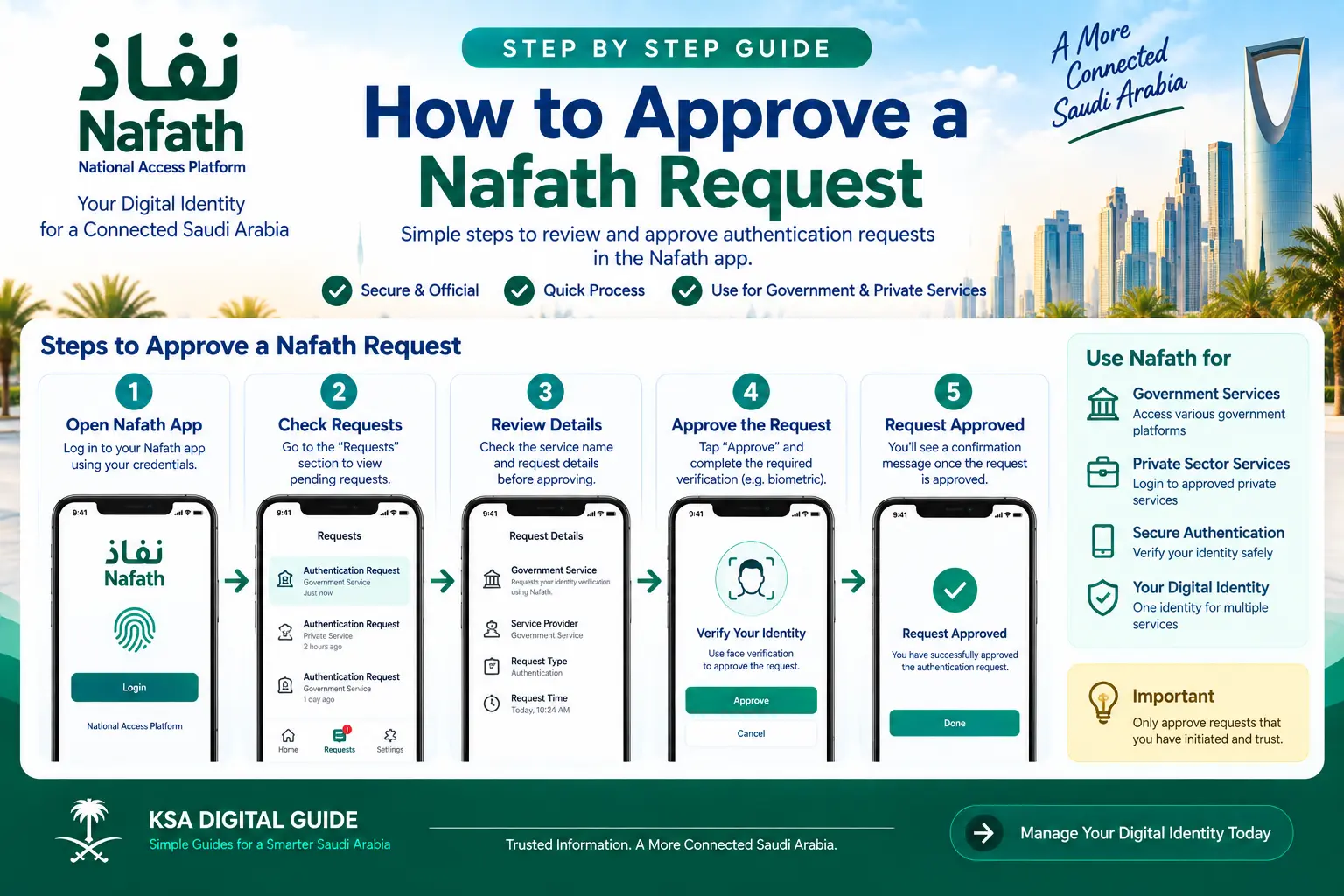
How to Approve a Nafath Request
Follow these steps when a Nafath authentication request appears on your phone.
Open the Nafath App
When you receive a notification about a new authentication request, open the Nafath app.
Open Requests
Go to the Requests section. The incoming authentication request will be displayed there.
Review the Request
Check the incoming request before accepting it. Make sure you recognize the service or login you are trying to complete.
Tap Accept
Select Accept to continue with the authentication request.
Select the Matching Number
Nafath will display request-number options. Select the number that matches the number shown on the service provider’s website or application.
Enter Your PIN
Enter the 6-digit personal PIN that you created when setting up the Nafath app.
If the Nafath Request Requires Biometric Verification
Some authentication requests require biometric verification. In this case, the process continues after you enter your PIN.
Follow the Face Instructions
Nafath will display instructions for capturing your face for biometric verification.
Position Your Phone
Position the phone according to the instructions shown on the screen and keep your face inside the capture frame.
Check the Camera
The official Nafath manual advises keeping the rear camera clean, avoiding other objects in the image and ensuring sufficient lighting.
Complete Capture
When the Capture button turns green, press it to complete the biometric verification.
How to Choose the Correct Nafath Request Number
This is one of the most important parts of the Nafath approval process.
When you tap Accept, Nafath can display several request-number options. Look at the service provider’s website or application where you started the login or verification process.
Choose the number in Nafath that exactly matches the number shown by the service provider.
What Happens After You Approve the Request?
Once the required verification is completed, Nafath shows a successful authentication message.
If you were trying to log in to another website or application, return to that service if necessary. The service provider can then continue the login or transaction.
If Nafath shows that authentication was successful but the service itself does not open or continue, Nafath’s official support page advises contacting the service provider directly because the problem may be with that provider rather than Nafath.
Nafath Request Not Working? Try These Checks
If you cannot approve a Nafath request, check the following before starting again.
| Problem | What to check |
|---|---|
| No request appears | Open the Nafath app and check the Requests section. If there is still no request, return to the service provider and try submitting the authentication request again. |
| Wrong request number | Compare the number shown by the service provider with the options displayed in Nafath and select the exact match. |
| Wrong PIN | Enter the 6-digit Nafath PIN that you created during app setup. |
| Face verification fails | Follow the on-screen positioning instructions, keep the entire face inside the frame, clean the rear camera and use sufficient lighting. |
| Request has expired | Return to the service provider and submit a new authentication request. |
| Nafath succeeds but service does not open | Contact the technical support team of the service provider you were trying to access. |
How Quickly Should You Approve a Nafath Request?
Do not leave a newly submitted authentication request waiting for a long time. An official Nafath platform user guide states that the request acceptance process must be completed within 60 seconds after the request is submitted.
Important Security Tips Before Approving a Nafath Request
- Only approve a request that you recognize.
- Check the service provider and request number before selecting Accept.
- Never give your Nafath PIN to another person.
- Do not approve unexpected authentication requests.
- If you did not start a login or verification process, reject the request rather than approving it.
- Keep your phone and Nafath app protected with appropriate device security.
Can You See Previous Nafath Requests?
Yes. Nafath provides a Requests History screen where previous requests performed through the app can be viewed along with their status and dates.
This can help you review earlier authentication activity if you need to check whether a request was completed.
Nafath Request FAQ
How do I approve a Nafath request?
Open the Nafath app, go to Requests, review the request, tap Accept, select the matching request number and enter your 6-digit PIN. Complete biometric verification if Nafath asks for it.
Why does Nafath show three numbers?
Nafath can display several request-number options. Select the number that matches the number shown on the service provider’s website or application.
What is the Nafath PIN?
The Nafath PIN is the 6-digit personal code created during the Nafath app login and setup process.
Why is Nafath asking for face verification?
Some authentication requests require biometric verification. When this happens, Nafath displays instructions for completing face capture after the request approval steps.
What should I do if I select the wrong request number?
If the wrong number is selected and the authentication fails, return to the service provider’s website or application and submit a new authentication request.
What if my Nafath request expires?
Return to the service provider and submit a new request. Official Nafath guidance states that request acceptance has a limited time window.
What if Nafath says authentication was successful but the website still does not open?
If Nafath verification succeeds but you cannot access the service provider’s service, contact that service provider’s technical support team.
How can I contact Nafath support?
You can contact Nafath technical support through the official call center at 8001221111, email Support@nic.gov.sa or the official X account @NIC_Care.
Related Nafath Guides
Official Nafath Sources
Need Help With Another Nafath Problem?
Explore our simple Nafath guides for login, registration, face verification and common problems.
View Nafath Troubleshooting Guide